
Bug:
Essential Software for using Linux (Compatible with Proot-Distro)
Mousepad - Text manipulation, like notepad
The default text editor for XFCE, great for plain text files.
- Installation (if not already installed)
sudo apt install mousepad
LibreOffice - All in one office software
Comprehensive suite that opens Word documents (.doc, .docx), PDFs, and more.
sudo apt install libreoffice
Xarchiver - Manipulated compressed files
Xarchiver is designed for lightweight desktop environments like XFCE and works similarly to File Roller.
Installation:
sudo apt install xarchiverUsage: You can open it from the menu or use right-click options. Xarchiver supports ZIP, TAR, RAR, and other formats, with a simple drag-and-drop interface for extracting and compressing files.
How to Install ibus to add foreign language typing
sudo add-apt-repository ppa:ubuntu-vn/ppa
sudo apt-get update
sudo apt-get install ibus-unikey
ibus restart
https://gist.github.com/codedeep79/cd473b24559342872311ad99fedaf551
ibus start → add a language trong trong interface của ibus
How to SSH to Proot-Distro on Termux
Running Linux distributions on Android with Termux and proot-distro provides a flexible way to explore different environments like Debian, Ubuntu, or Fedora. However, since proot-distros operate in a container-like setup (using chroot and proot), they lack traditional service managers like systemd or upstart. This means that to enable SSH access, you’ll need to set up and start the SSH server manually. Here’s a step-by-step guide to configure and connect to your proot-distro environments using SSH.
Install SSH in the Target Distro
To start, access the proot-distro you want to control via SSH, if you haven’t got a distro installed, please refer to other blog post for installation guide. For example, if you’ve installed Ubuntu with proot-distro, you can access it with:
proot-distro login ubuntu
# Enter your password
Once inside, install the SSH server:
apt update && sudo apt install openssh-server
This command installs the sshd service needed to connect remotely. To check the installation, you can use the command:
sudo service ssh status

Configure the SSH Server
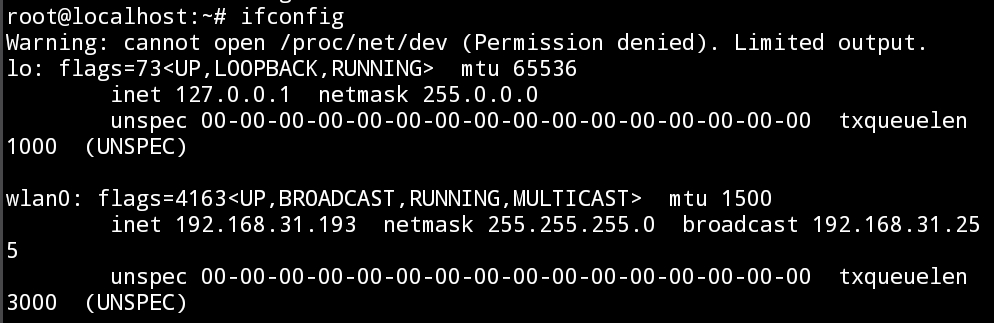
Because proot-distro environments share the same network stack with your android device, you only need to use localhost and assign each SSH server a unique port number.
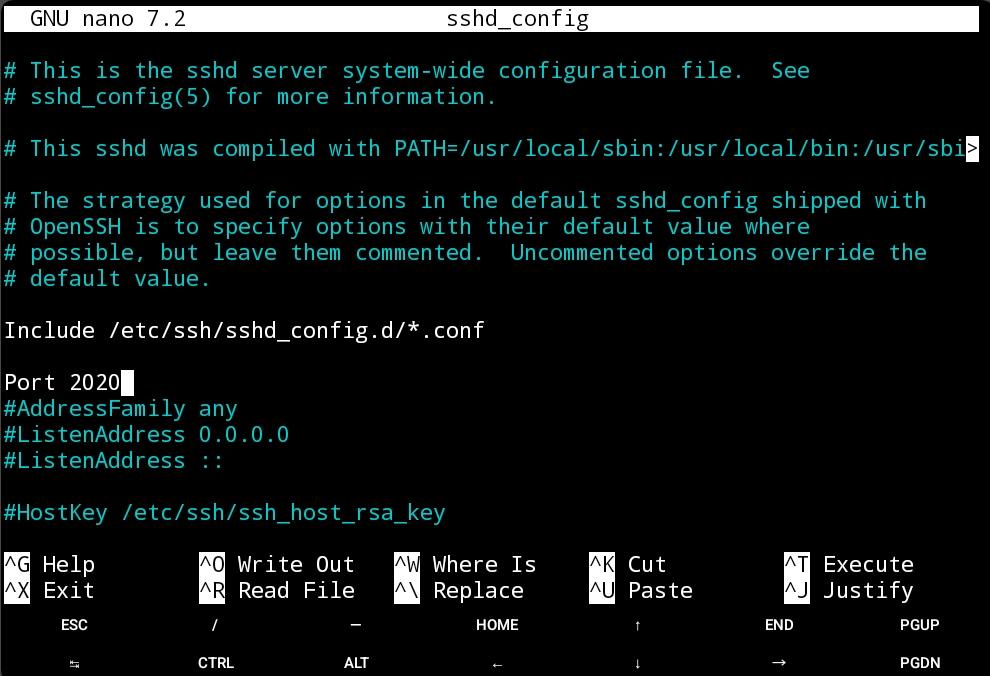
To do this, open the SSH configuration file (/etc/ssh/sshd_config) and specify an available port.
For example, set the SSH server to listen on port 2222:
Open the SSH configuration file:
sudo nano /etc/ssh/sshd_configFind the line that reads
#Port 22and change it to:Port 2020 # Change to any number you wantFor non-root users, you will need to use a port number > 1024:
ports below 1024 (like sshd's default port 22) are off-limits for non-root user, unless you run proot-distro with
--fix-low-portsSave and close the file (Ctrl + X → Enter).
Start the SSH Server Manually
Since systemd isn’t available, you’ll need to start the SSH server manually each time you want to connect.
Run:
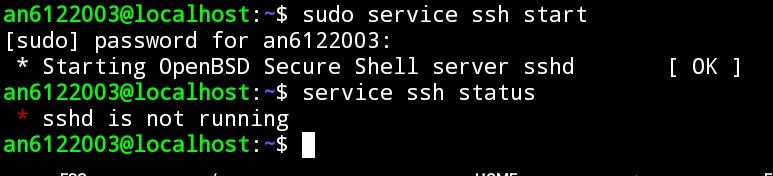
service ssh start
To verify that the SSH server is running, use:
service ssh status
SSH from Your Main Debian Environment
With SSH set up and running in your target proot-distro, you can now connect from your main Debian environment (or any other environment with SSH access).
Open a terminal in Debian and connect to the target distro using the port you specified:
ssh -p 2020 user@localhost
# Change to match the port number you specified and your user.
# You will need to enter the user's password.
Note: Replace user with the username in the target distribution. Also, remember to use the correct port if you set up multiple proot-distros with different ports.
Automate SSH Startup (Optional)
To streamline the process, you might consider adding an alias or a script in your .bashrc or .zshrc file to quickly start the SSH server and connect. For example:
alias start_ssh_distro="proot-distro login ubuntu && service ssh start"
This way, you can start the SSH service in a target distro with a single command.
Conclusion
Setting up SSH in proot-distro allows you to manage multiple Linux distributions from a central environment on Android. While the lack of systemd means that you’ll need to start SSH manually, this approach offers a powerful way to interact with different Linux environments on a mobile device. Now, you’re ready to explore and control your proot-distro setups with ease!
Chromium crash when Sign-in with Google
Upon using chromium, I have encountered these limitations and bugs:
- Crash when Sign-in with Google (pop-up)
- Can not set the default search engine to Google, you need to use DuckDuckGo.
I haven’t found the fix for these issues yet. However, using Firefox can prevent most of this. To install Firefox on your proot-distro:
sudo apt update
sudo apt install firefox-esr
To add Firefox to desktop:
Navigate to the Desktop directory:
cd ~/DesktopCreate a new
.desktopshortcut file:nano firefox-esr.desktopAdd the following content to the file:
[Desktop Entry]
Name=Firefox ESR
Comment=Web Browser
Exec=firefox-esr %u
Icon=/usr/share/icons/hicolor/48x48/apps/firefox-esr.png
Terminal=false
Type=Application
Categories=Network;WebBrowser;
Save and exit the file (in nano, press
Ctrl + O, thenEnter, andCtrl + X).
Can not paste from clip-board into terminal
After a fresh install of proot-debian, the distro itself does not come with a “useful” terminal emulator, which also happen to not support pasting clipboard.
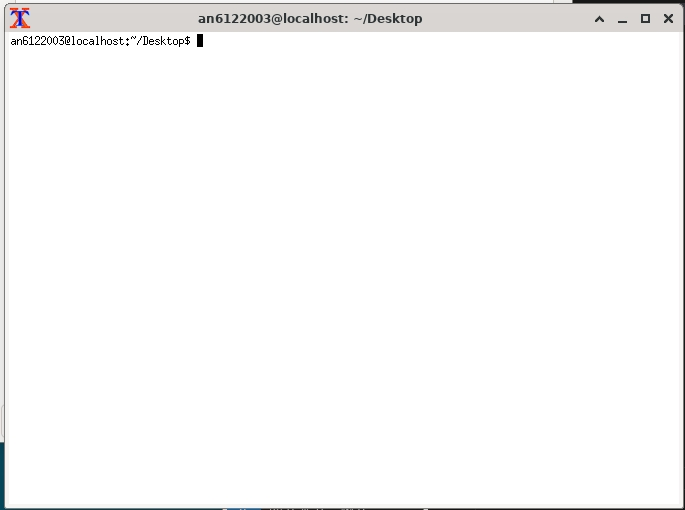
To fix this, you could use any other terminal emulator which provide more fucntionality, or even the built-in one in your VS Code. For this time, I will use the default xfce4-terminal , install it using the command:
sudo apt update && sudo apt install xfce4-terminal
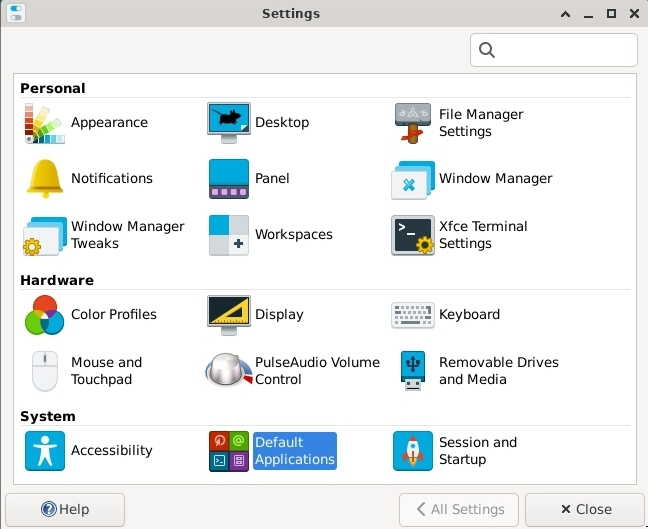
To set xfce4-terminal as the default terminal emulator of debian. Go to Setting Manager → Default Application
Choose Xfce Terminal.
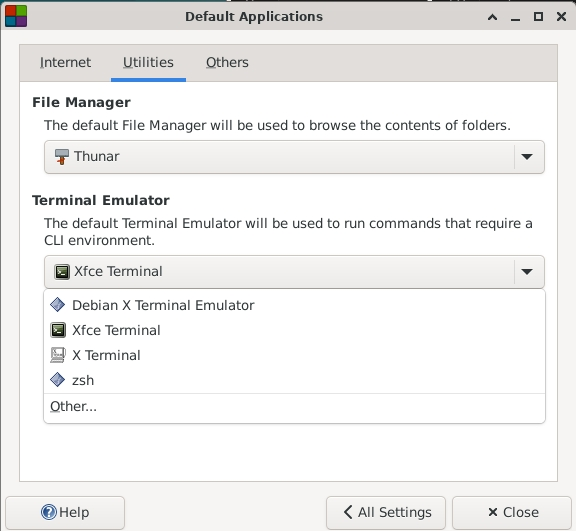
Now all shortcut will open Xfce terminal, and you can paste your clipboard using Ctrl + Shift + V .
Unable to press “Up Arrow Key” to get previous command in terminal - Samsung Dex
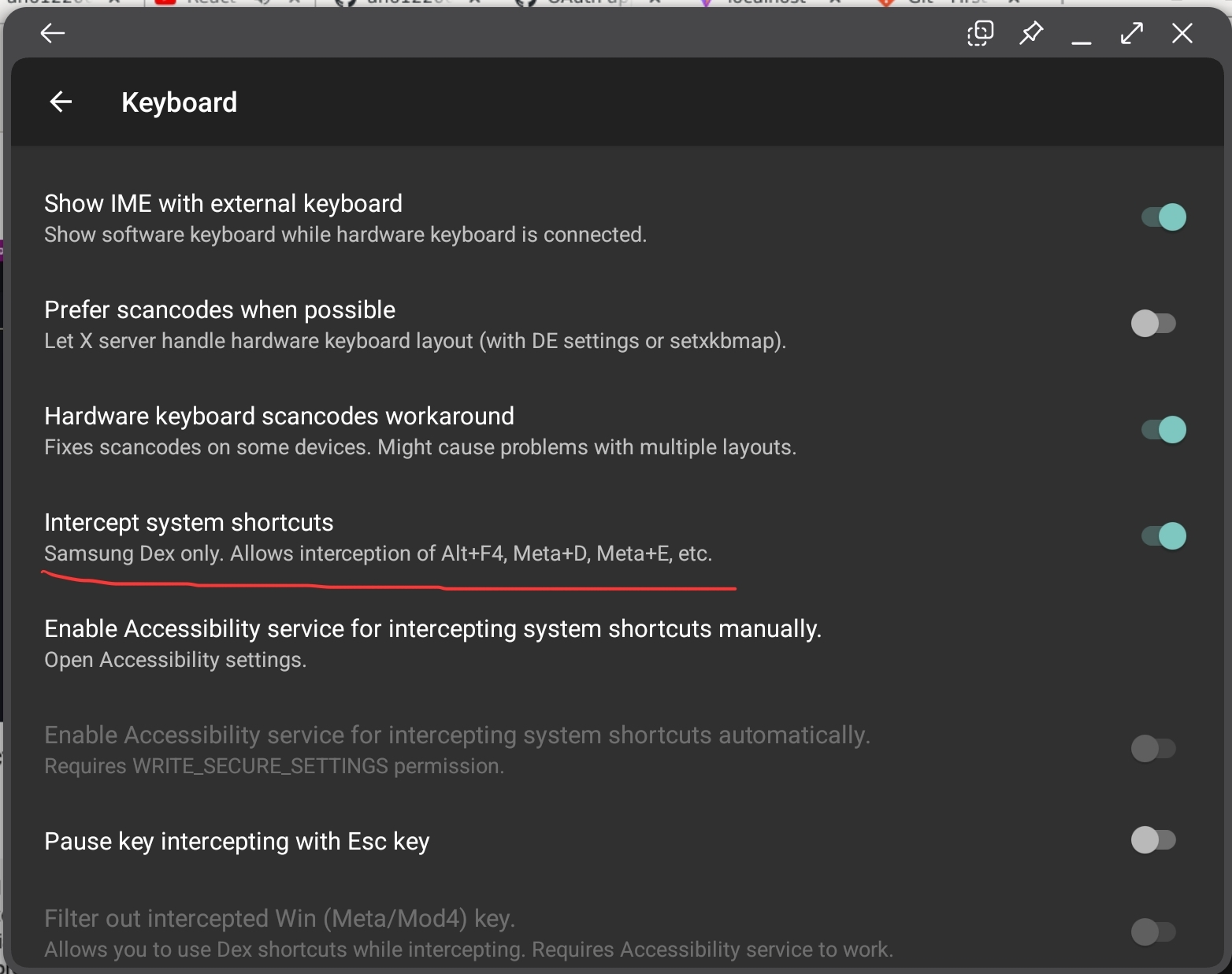
I face this issue using SamSung Dex mode on Galaxy Tab S9+, the up arrow key is translated to A key.

This is probably due to the OS convert these keys into a shortcut. To disable this, turn on the option Intercept system shortcuts .
No audio pass through from Linux
This bug caused me several days to research, trials and fix :D. Anyway, to make sure that we are solving the correct problem, first when firing up debian, you want to make sure that your Termux is able to play audio by itself, regardless not having any distro. To do this, we can install mpv, as it will also install every libs needed for audio to work if your Termux haven’t come with it (~ 700 - 800 Mb). To my experience, the Termux downloaded directly from the Github build doesn’t come with it.
pkg install mpv
Then locate an audio file of your choice to test if audio is playing. You can also get an audio file to test at:
# Sample audio file
sudo apt install wget
wget https://www2.cs.uic.edu/~i101/SoundFiles/CantinaBand3.wav

# Test playing audio
mpv ./CatinaBand3.wav
If the audio is playing, and output look like below, then you can move on to setting up pulseaudio server to receive audio from the proot-distro (debian).
*Note:
- If it does not work, you could have a check in your Android app info setting → grant Audio & File, Mic access to Termux (try granting all access and remove one by one).
For OneUI 6.1, there are reported bug and fixed (PulseAudio cannot hook to OpenSL ES), you could find more information at this issue: https://github.com/termux/termux-packages/issues/19623
Go to your .bashrc of Termux:
nano ../usr/etc/bash.bashrc
Then add the following code at the end of the file:
LD_PRELOAD=/system/lib64/libskcodec.so
pulseaudio --start --load="module-native-protocol-tcp auth-ip-acl=127.0.0.1 auth-anonymous=1" --exit-idle-time=-1
Then source it, or better, force stop Termux and relaunch it.
You can also add it to your script that launch the proot distro, like the example below:
#!/data/data/com.termux/files/usr/bin/bash

# Kill open X11 processes
kill -9 $(pgrep -f "termux.x11") 2>/dev/null

# Enable PulseAudio over Network
LD_PRELOAD=/system/lib64/libskcodec.so
pulseaudio --start --load="module-native-protocol-tcp auth-ip-acl=127.0.0.1 auth-anonymous=1" --exit-idle-time=-1

# Prepare termux-x11 session
export XDG_RUNTIME_DIR=${TMPDIR}
termux-x11 :0 >/dev/null &

# Wait a bit until termux-x11 gets started.
sleep 3

# Launch Termux X11 main activity
am start --user 0 -n com.termux.x11/com.termux.x11.MainActivity > /dev/null 2>&1
sleep 1

# Login in PRoot Environment. Do some initialization for PulseAudio, /tmp directory
# and run XFCE4 as user an6122003.
# See also: https://github.com/termux/proot-distro
# Argument -- acts as terminator of proot-distro login options processing.
# All arguments behind it would not be treated as options of PRoot Distro.
proot-distro login debian --shared-tmp -- /bin/bash -c  'export PULSE_SERVER=127.0.0.1 && export XDG_RUNTIME_DIR=${TMPDIR} && su - an6122003 -c "env DISPLAY=:0 startxfce4"'

exit 0
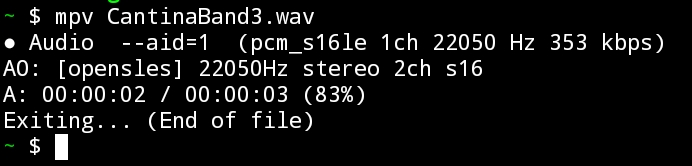
Now the audio driver is working already. You need to install pulseaudio in both Termux and your proot-distro:
# Termux
pkg install pulseaudio

# proot-distro
sudo apt install pulseaudio
Now when starting the distro, you need to make sure pulseaudio is running in Termux, and you set the correct environment variable for pulseaudio in proot-distro:
# Termux
pulseaudio --start --load="module-native-protocol-tcp auth-ip-acl=127.0.0.1 auth-anonymous=1" --exit-idle-time=-1

# proot-distro
export PULSE_SERVER=127.0.0.1
You can have a check in proot-distro, if audio device is working:
# Output should not be empty
pactl list sources short
The output should ensure that both Termux and proot-distro pulseaudio are hooked to the same service, OpenSL_ES_sink module-sles-sink.c in this case. If proot-distro keep showing 0 auto_null module-null-sink.c , then refer to the problem with OneUI 6.1 above.
Termux:

Debian proot-distro:

The Volume Control come pre-installed with xfce4 (install pavucontrol if you don’t have it) will now show you if audio is playing or not.
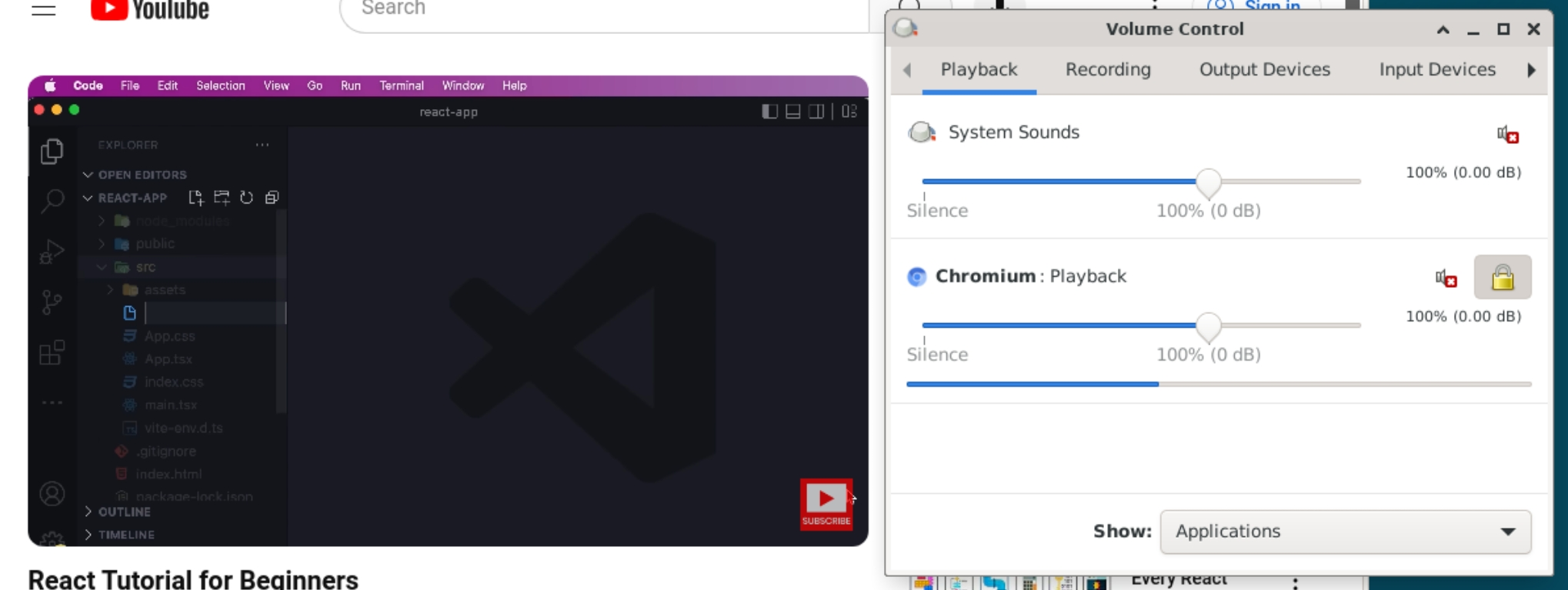
You can put all those setting together into a script to startup your proot-distro, and it should look like this:
#!/data/data/com.termux/files/usr/bin/bash

# Kill open X11 processes
kill -9 $(pgrep -f "termux.x11") 2>/dev/null

# Enable PulseAudio over Network
pulseaudio --start --load="module-native-protocol-tcp auth-ip-acl=127.0.0.1 auth-anonymous=1" --exit-idle-time=-1

# Prepare termux-x11 session
export XDG_RUNTIME_DIR=${TMPDIR}
termux-x11 :0 >/dev/null &

# Wait a bit until termux-x11 gets started.
sleep 3

# Launch Termux X11 main activity
am start --user 0 -n com.termux.x11/com.termux.x11.MainActivity > /dev/null 2>&1
sleep 1

# Login in PRoot Environment. Do some initialization for PulseAudio, /tmp directory
# and run XFCE4 as user an6122003.
# See also: https://github.com/termux/proot-distro
# Argument -- acts as terminator of proot-distro login options processing.
# All arguments behind it would not be treated as options of PRoot Distro.
proot-distro login debian --shared-tmp -- /bin/bash -c  'export PULSE_SERVER=127.0.0.1 && export XDG_RUNTIME_DIR=${TMPDIR} && su - an6122003 -c "env DISPLAY=:0 startxfce4"'

exit 0
*This file is modified from DroidMaster repository: https://github.com/LinuxDroidMaster/Termux-Desktops
Process completed error (signal 9) - Crashing Termux
For Android 14 - Im using Galaxy Tab S9+ → Enable Developer Setting in your device → Turn on Disable child process restrictions
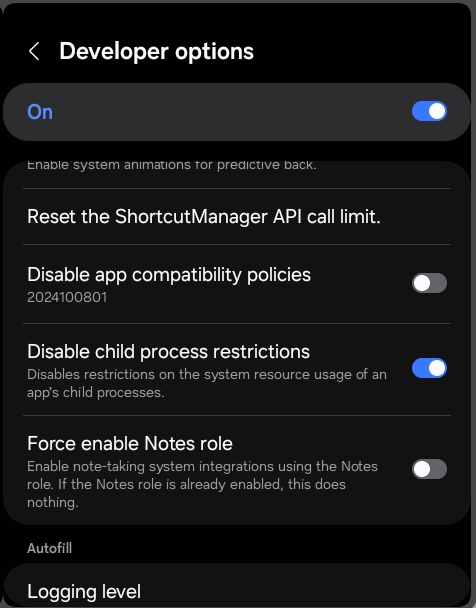
For lower Android version, you may try this method listed in a reddit thread
Can’t paste clipboard
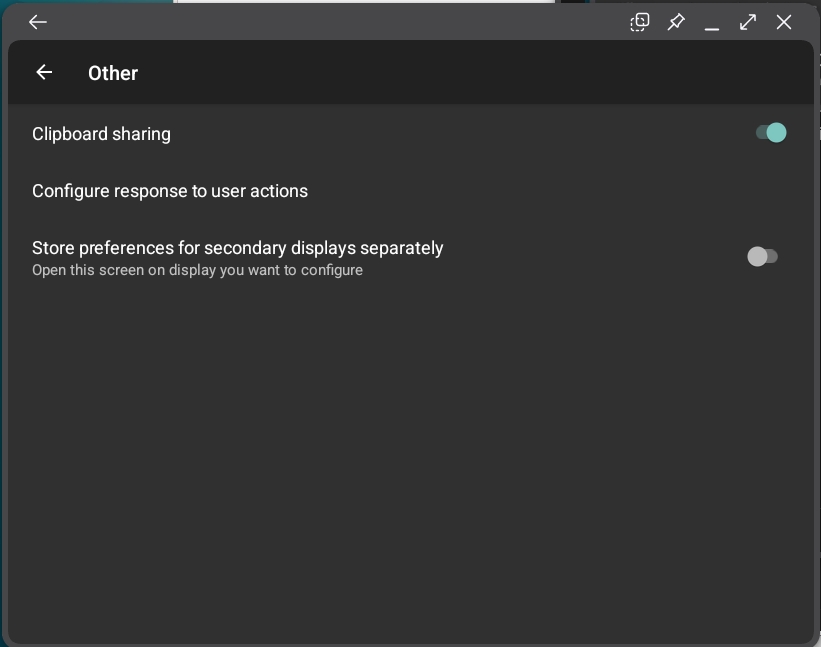
In the setting of Termux X11, go to Keyboard Setting → Enable Workaround to enable CJK Gboard
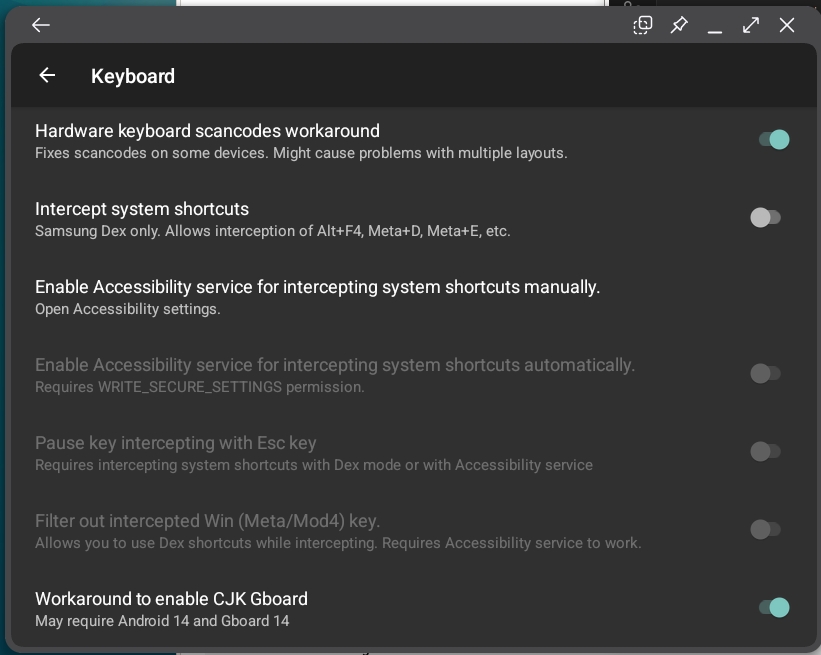
In Other setting → Enable Clipboard sharing
Can’t Authenticate with Git (to pull, push, …)
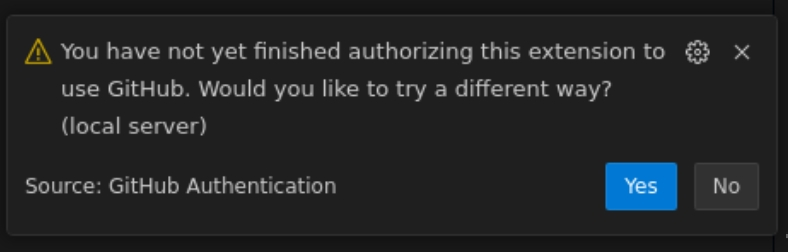
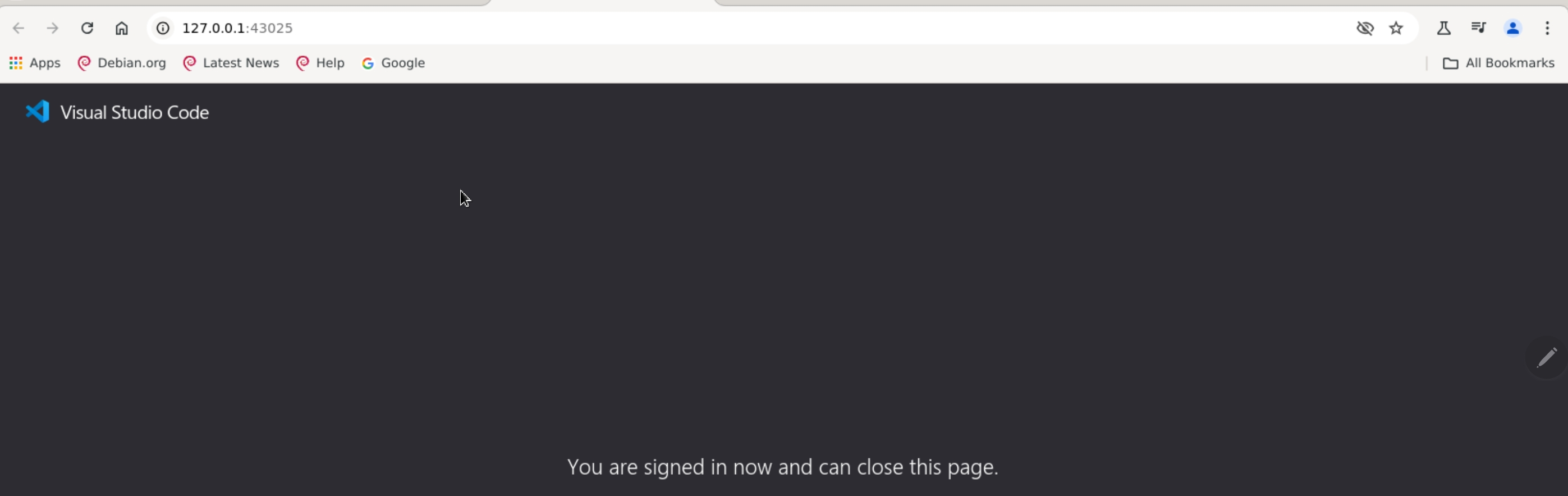
When you perform a git command like git push , there will be a window pop-up for you to sign in through the browser.
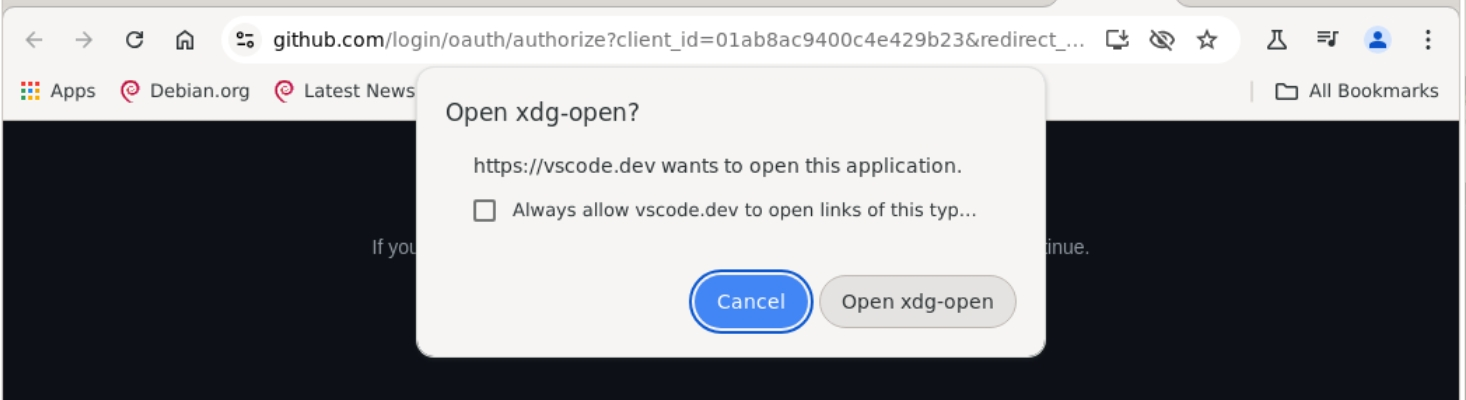
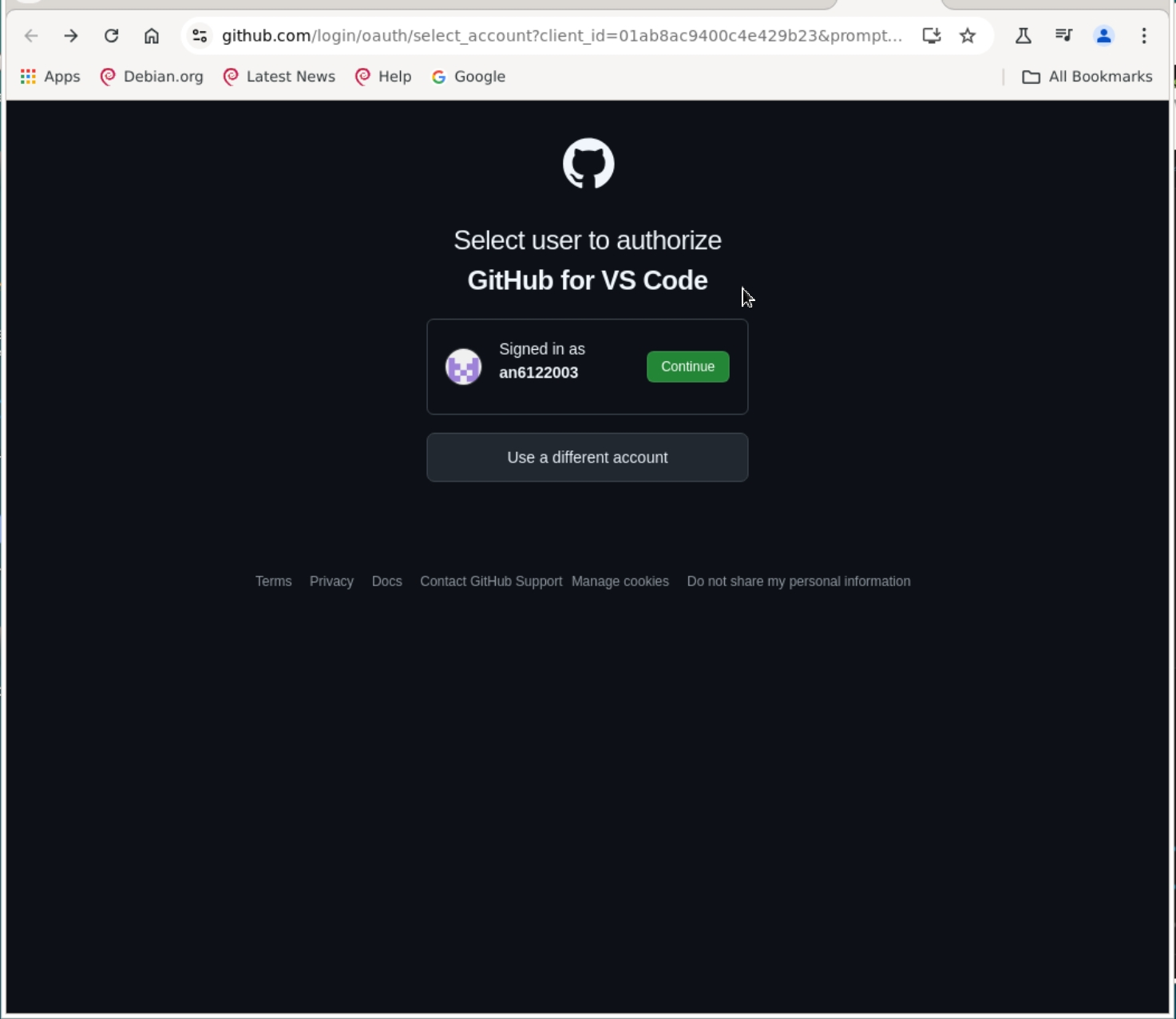
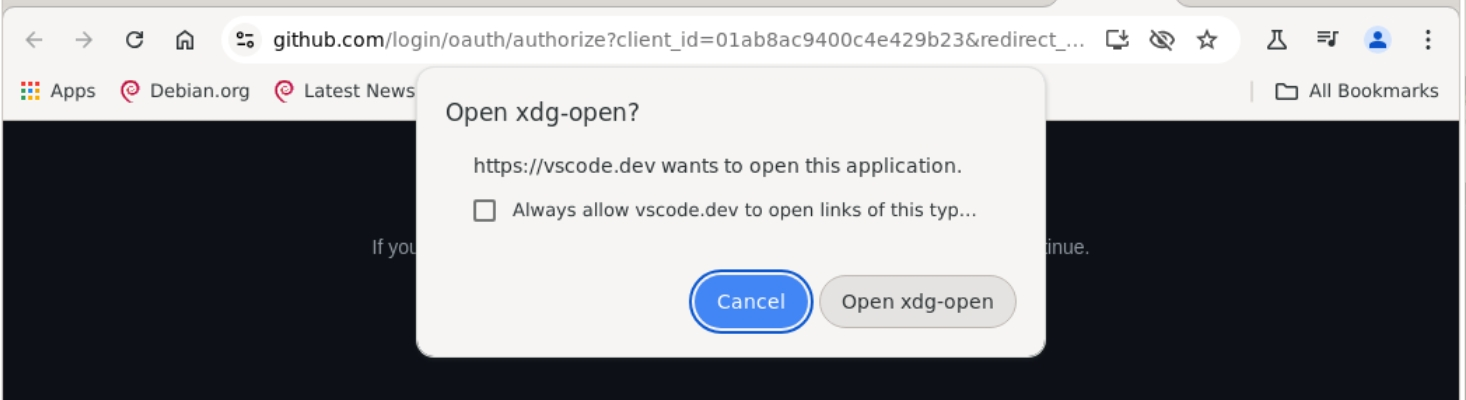
However, this will not work, as it wont’t re-direct you back to VSCode. If you close the pop-up, VSCode will ask you try authenticate with a local server. This wont’t work too, even though the screen said success login.
💡 Update: Sometime it will work.
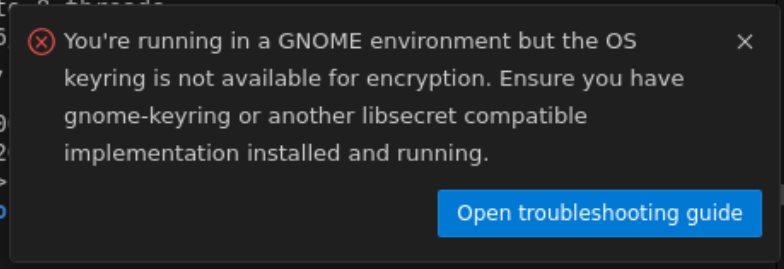
The error we are seeing indicates that VS Code is looking for a keyring service to store credentials securely, but it can't find one. This is because VS Code expects a GNOME keyring or a compatible keyring (like libsecret) to be running, even though we're using XFCE.
Here’s how we can fix this in XFCE:
Solution 1: Install and Use GNOME Keyring
Install GNOME Keyring:
bash
Copy code
sudo apt update
sudo apt install gnome-keyring
Enable the Keyring: We can start the keyring daemon with:
bash
Copy code
/usr/bin/gnome-keyring-daemon --start --components=pkcs11,secrets,ssh
Export Keyring Variables: To make sure the keyring works across terminal sessions, we add the following to our terminal session or
.bashrc:bash Copy code export $(/usr/bin/gnome-keyring-daemon --start) export XDG_SESSION_TYPE=x11Restart VS Code: After restarting VS Code, it should detect the keyring, and the error should no longer appear.
Solution 2: Use XFCE-Compatible Alternatives (Secret Service with libsecret)
If we prefer not to use GNOME Keyring, we can install libsecret with a compatible backend.
Install libsecret:
bash
Copy code
sudo apt install libsecret-1-0 libsecret-tools
Set Up the Keyring Backend: We can initialize the backend with:
bash
Copy code
secret-tool store --label="Test" user test
Restart VS Code: After closing and reopening VS Code, it should now work properly without the keyring error.
Optional: Disable the Keyring Requirement
If we want to avoid using a keyring entirely (not recommended for security reasons), we can disable it by launching VS Code with:
bash
Copy code
code --disable-features=USE_GNOME_KEYRING
Install VSCode
Go to VSCode page → download installer for arm64.deb → cd to /Downloads → Run below script
sudo dpkg -i installer_file.deb
To run VSCode
code --no-sandbox
Install Google Chrome
In the terminal
sudo apt install chromium -y
To run Chromium
chromium --no-sandbox
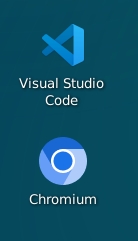
Create Desktop Icon for VSCode and Chromium
Step 1: Create a Desktop Entry File
Navigate to the desktop directory:
cd ~/DesktopCreate a new desktop entry file, for example,
vscode.desktopfor VS Code:nano vscode.desktopAdd the following content to the
vscode.desktopfile:plaintext Copy code [Desktop Entry] Version=1.0 Name=Visual Studio Code Comment=Code Editor Exec=code --no-sandbox Icon=vscode Terminal=false Type=Application Categories=Development;IDE;Save the file (
Ctrl + O, thenEnter) and exit (Ctrl + X).If you are not familiar with CLI text editor like nano in this case, you can also use VSCode to create these file. Just use code
--no-sandboxinstead ofcodecd /Desktop code --no-sandbox .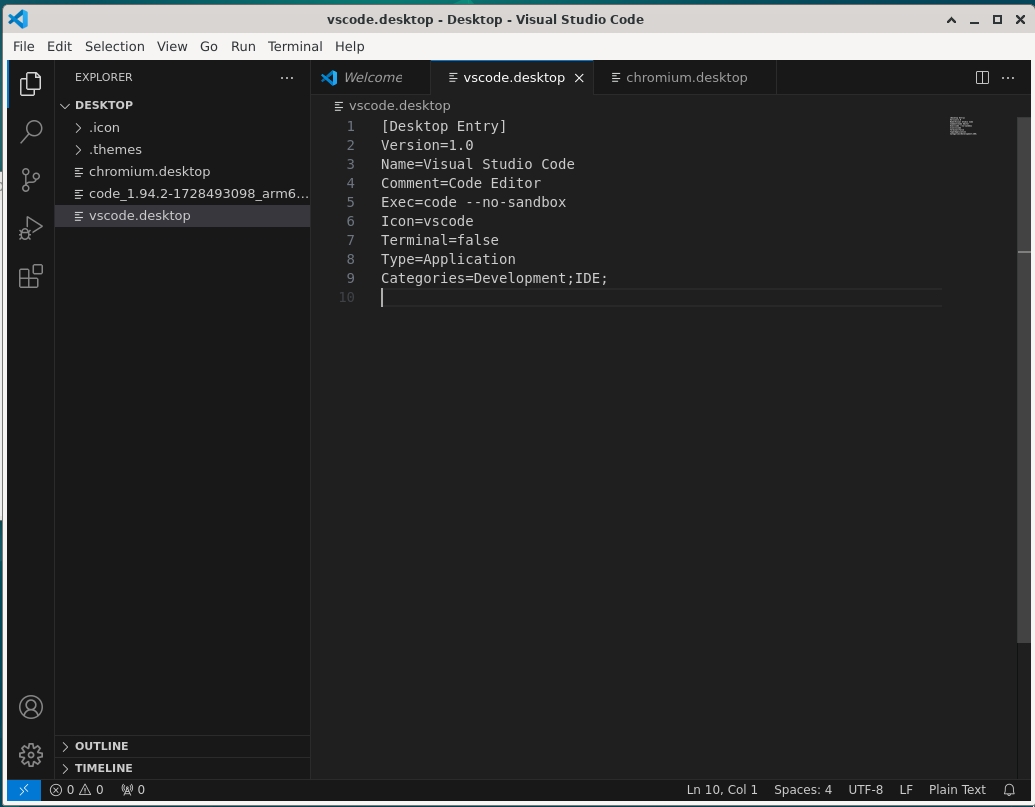
Similarly, create a desktop entry for Chromium:
nano chromium.desktopAdd the following content to
chromium.desktop:plaintext Copy code [Desktop Entry] Version=1.0 Name=Chromium Comment=Web Browser Exec=chromium --no-sandbox Icon=chromium Terminal=false Type=Application Categories=Network;WebBrowser;Save and exit.
Step 2: Make the Desktop Files Executable
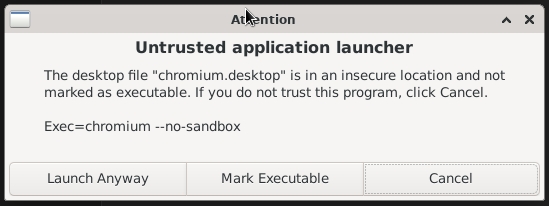
Run the following commands to make the desktop entry files executable:
chmod +x ~/Desktop/vscode.desktop
chmod +x ~/Desktop/chromium.desktop
You can also Mark Executable by the GUI by just clicking in the icon.
Step 3: Test the Desktop Icons
Now, you should see the icons on your desktop. Double-clicking them should launch VS Code and Chromium with the --no-sandbox option.
Optional: Move the Desktop Files to the Applications Directory
If you want these shortcuts to appear in the application menu, move them to the appropriate directory:
mv ~/Desktop/vscode.desktop ~/.local/share/applications/
mv ~/Desktop/chromium.desktop ~/.local/share/applications/