What is Terraform State?
Terraform state is a crucial concept in Terraform because it acts as the single source of truth for the resources Terraform manages. The state file, usually named terraform.tfstate, keeps track of all the infrastructure resources that Terraform is managing, including their current configuration and metadata.
Why is Terraform State Important?
- Resource Tracking: Terraform needs to know what resources it has already created to perform updates or deletions correctly. It compares the state with your configuration files to determine what changes need to be made.
- Dependency Management: Terraform uses the state file to understand resource dependencies, which is critical for correctly applying changes.
- Collaboration: When multiple people or systems are working on the same infrastructure, the state file ensures everyone is working from the same set of resources.
Where is the State Stored?
- Local State: By default, Terraform stores the state file locally on your machine in the same directory where you run Terraform commands. This is fine for small projects or individual use, but it can be problematic for larger teams or automation pipelines.
- Remote State: For collaborative environments, it's common to store the state remotely in a backend like AWS S3, GCP Cloud Storage, or Terraform Cloud. Remote state allows multiple users to work on the same infrastructure safely by locking the state file when changes are being applied, preventing conflicts.
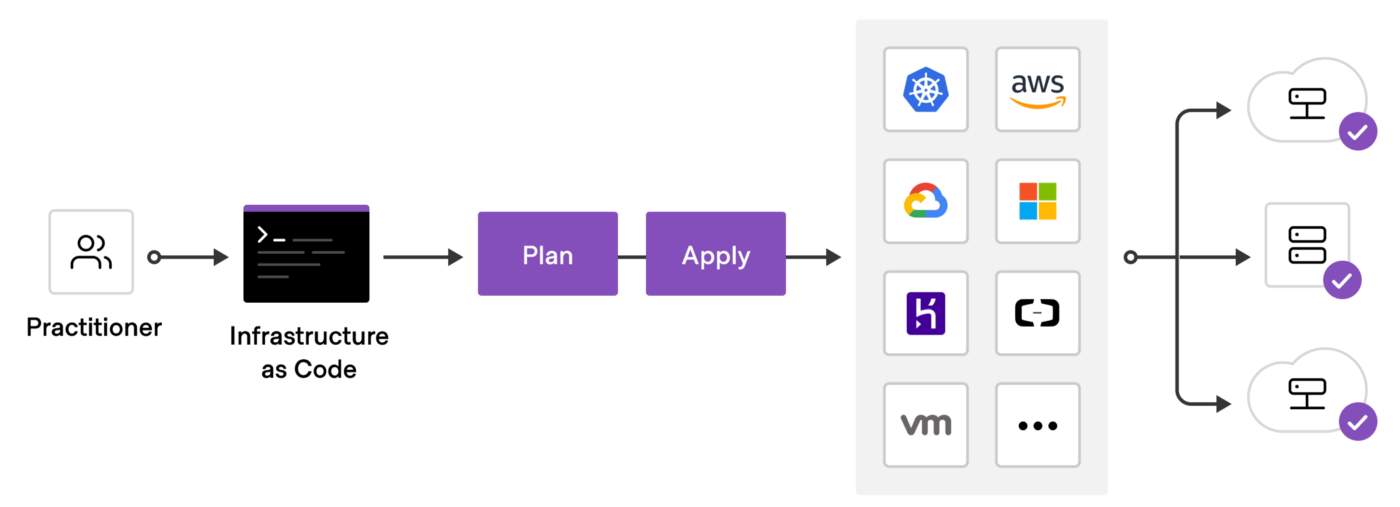
Example of Local State
When you run terraform apply, Terraform will:
- Create or update resources based on your
.tffiles. - Record the actual state of the resources in
terraform.tfstate. - Store the state file locally in the current working directory.
Moving to Remote State
If you're working in a team or want to store the state file remotely for security or redundancy, you can configure Terraform to use a remote backend. Here's an example for an S3 backend:
terraform {
  backend "s3" {
    bucket = "my-terraform-state"
    key    = "path/to/my/terraform.tfstate"
    region = "us-west-2"
  }
}